How to use AI to write a spreadsheet formula in Excel or Google Sheets
Describe your columns and what you want in plain words, and an AI assistant writes and explains the formula. How to check it by hand, and what not to paste from a work spreadsheet.

Write a spreadsheet formula
I'm using [Excel / Google Sheets]. My data is on a sheet called [sheet name]. Row 1 has headers: column A is [what's in it], column B is [what's in it], column C is [what's in it]. The data runs from row 2 to about row [number]. Here are three example rows, with made-up values in the same format as mine: [paste three rows]. I want a formula in cell [cell] that [what you want, in plain words]. Give me the formula, explain each part in one line, and tell me what could make it give a wrong answer with data like mine.
Tap a blank to fill it in, or copy it as it is.
Most people know what they want from a spreadsheet ("total of fuel costs in October") and get stuck on how to say it in formula. An AI assistant (a chat program such as ChatGPT, Claude, Gemini or Copilot) is good at translating that plain-English request into a working formula, as long as you describe your columns precisely. The prompt above makes it explain the formula too, so you can check it and fix it yourself next time.
What you need
- An AI chat assistant. The free version handles everyday formulas fine.
- Your spreadsheet open, so you can see the exact column letters and what's in each.
- Three example rows with made-up values in the same format as your real data. The format is what matters: real dates or text that looks like dates, numbers or numbers with a currency sign.
- Your workplace's rules on AI tools, if you're doing this for work. Some employers allow only an approved assistant, or none. If you're not sure, ask before you paste anything about work into a chat.
Step by step
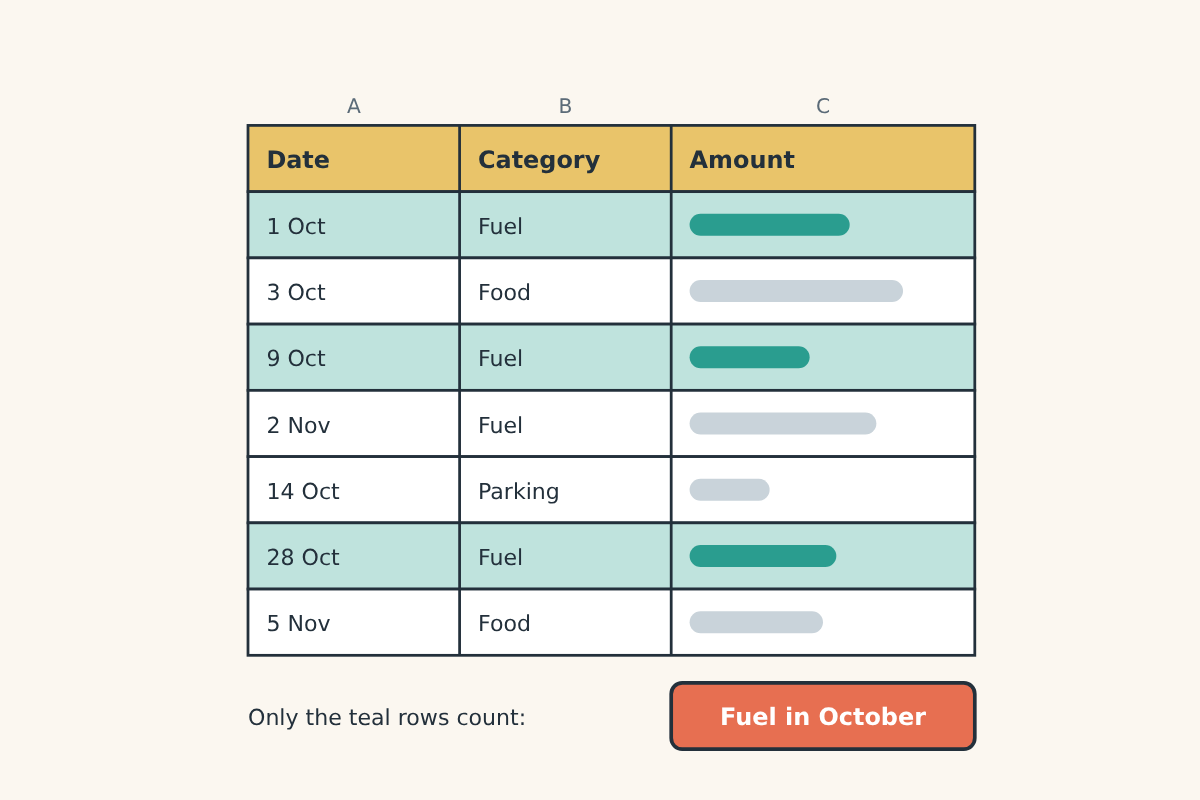
- Describe the columns by letter. "Column A is the date, column B is the category (Fuel, Food, Parking), column C is the amount in pounds" gives a far better formula than "I have a spending sheet".
- Say what you want in plain words, including the edge cases you care about: "total of column C where column B says Fuel and the date in column A is in October 2026."
- Paste the formula into the cell and check it against a few rows you can add up by hand. If you have three Fuel rows in October, add those three yourself and compare.
- If it's wrong or shows an error, paste the exact error message (such as #VALUE! or #NAME?) back into the chat with what you expected. Assistants are good at fixing their own formulas once they see the error.
- Read the one-line explanations. Next month you may be able to change the formula yourself instead of asking again.
What a good answer looks like
You get one formula, not three alternatives, written for the app you named. For the October fuel example, a good answer looks like this:
=SUMIFS(C:C, B:B, "Fuel", A:A, ">="&DATE(2026,10,1), A:A, "<"&DATE(2026,11,1))
Each part comes with a short explanation: which column is added up, which column is checked for "Fuel", and how the two date conditions keep only October. A good answer also warns you about your data: dates stored as text won't match, and "fuel " with a trailing space isn't the same as "Fuel" to some formulas. If you want to read up on a function yourself, the app makers' own help pages are the reference: here is SUMIFS in Excel and SUMIFS in Google Sheets.
Where it goes wrong
- It guesses your layout. If you don't say which column is which, the assistant invents a layout and the formula points at the wrong columns. Always give column letters.
- Dates that aren't dates. Many sheets hold dates as text (often after pasting from a bank or another system). Date formulas then return zero or skip rows silently. If a total looks too low, ask: "How do I check whether column A holds real dates?"
- Excel and Sheets differences. Most everyday functions work in both, but some newer ones don't, and separators can differ by region (a comma in one country, a semicolon in another). Name your app, and if you get a parse error, say where you are.
- Confidently wrong. A formula can run without errors and still give the wrong number, for example by counting one extra row or missing the last day of the month. The hand check in step 3 is the only way to know.
- Overbuilt answers. Sometimes you get a long nested formula when a simple one would do. Ask: "Is there a simpler formula that does the same?"
Keep it private
Spreadsheets at work often hold exactly what you shouldn't paste into a chat: customer names, salaries, account numbers, health or HR data, unreleased figures. You don't need any of it. The assistant needs the layout, not the contents: column letters, headers and a few made-up example rows in the same format. If your employer has an approved AI tool, use that one for work files. For the wider list, see what you should never paste into an AI chatbot, and if you're not sure which assistant to use at all, our 10-minute test for choosing an AI assistant is a good start.
Tested with
We ran this prompt in Claude in November 2026 for a made-up spending sheet in Google Sheets: date in column A, category in column B, amount in column C, with the request "total of Fuel in October 2026". It returned the SUMIFS formula above, explained each part in one line, and warned that dates stored as text would be skipped and that category spellings had to match. When we asked the same question without naming the columns, it assumed a layout with the amount in column B, so the formula pointed at the wrong data. Naming the columns fixed it straight away.
